Hello everyone in this lesson we will learn about NPM. NPM stands for Node Package Manager. And in this lesson we will cover three main things.
- Number one we will answer the question of not only what is Noad package manager but what is package management in general and why would we use it.
- Number two we will review what types of files and packages we hope to find on NPM.
- And finally number three we will have a hands on demo. We will see NPM in action. You will follow along step by step on your computer should be a lot of fun. But lets start up at the top.
- Number one what is package management.
To begin I want you to think of NPM as a grocery store that contains code instead of food. I guess that would make it a code store not a grocery store but stick with me on this analogy. So for example if we were going to bake a cake we would need flour sugar vanilla extract maybe baking powder. Now how are we going to get all of those ingredients.
For example with flour. Are we going to start with wheat and turn into flour ourselves. Maybe some of us will do that but instead I think the vast majority of us will go to the grocery store and pick up some flour. We probably aren’t going to grow our own sugar cane and turn it into sugar. We will go to the grocery store and pick up some sugar.
You get the idea.
Now the same thing is true in development with code. So for example if there are a few tasks that we want to automate with Node we don’t need to write a bunch of code. Instead we can just go to the grocery store NPM and pick up a package that helps with automation. A package that already has all of the code we will need so NPM is a centralized place where developers share their code with the world and everything in this centralized store is completely free.
The idea is that if we come together and share our code with each other we can all create better work and we can all avoid constantly reinventing the wheel. OK so NPM is a place where a bunch of code lives.
But what is package management. Let’s go back to our cake baking analogy. So with out package management you might need to go to one store for flour and vanilla extract and then go all the way across town to another store for sugar and maybe even a third store on the other side of town for a special type of baking powder that you like.
This is the equivalent of googling for the JQuery Web sites you can download JQuery and then Googling for bootstraps you can download bootstrap.
It’s not the most efficient way of doing things or with package management. You can just sit at home and create a grocery list and then give that list to your personal robot assistant and it will go fetch all of the ingredients for you.
Also food ingredients can expire and go bad just like code packages can become outdated. Or sometimes they might have a mistake or a bug in them and maybe the author of a script we’re using fixes a bug after we’ve already saved the package to our computer.
With package management we can just run a single command and our robot assistant will automatically check every single item on our recipe ingredient list to see if it has expired and if it can go grab a newer fresher copy for us so hopefully that convinces you that there are great benefits to using package management. For now let’s move on to the second part of the lesson where we talk about what types of files and code packages we hope to find on NPM.
I would say that most packages on NPM fall into one of two categories.
- The first category might be a bit obvious considering what the letters NPM’s stand for but the first category is simply node packages packages of code that help us do things in code so we know that node can be used for a lot of things we can use it to automate tasks. We can use it to make our life as a developer easier. We can do things on the server level with Node. We can do just about anything with node and there is a package for just about anything on NPM.
- The second category of packages that we can find on NPM may be a bit less obvious in this category we can find packages that have nothing to do with node packages like Jquery, Lodash, bootstrap, normalize.css. You get the idea.
So these are packages of javascript and CSS that we need for our website to actually run in a web browser. The point that I’m trying to drive home here is that NPM is a lot bigger than just node and we can use NPM as our one stop shop for any code we need.
Now having said that I think it’s time to move on to the fun part of the lesson. The part where we get our hands dirty and actually begin to use NPM.
All right. So let’s get started.
The first thing I want you to do is to open your command line. Next I want you to navigate in the command line to the folder for the fictional travel agency Web site that we created a few lessons ago so within your generic sites or projects folder you will remember that we created a travel site folder. This contains the starter files for the project.We will be building together in the course we even configured this to push to your own personal Github account.
So in my case I’m just going to type CD and then drag that travel site directory under my command line. All right. Now I know that once we begin building the Web site we are going to use Jquery.
So right now let’s go ahead and use NPM to download Jquery into our travel site folder. To do that in the command line just type NPM install jquery. Hit enter.
In our previous lesson when we installed node js on our computer. That also gave us access to these NPM commands. And now if we check the travel site folder we will see a new folder named node modules and within that there is a Jquery folder. NPM went onto the Internet and downloaded this for us.
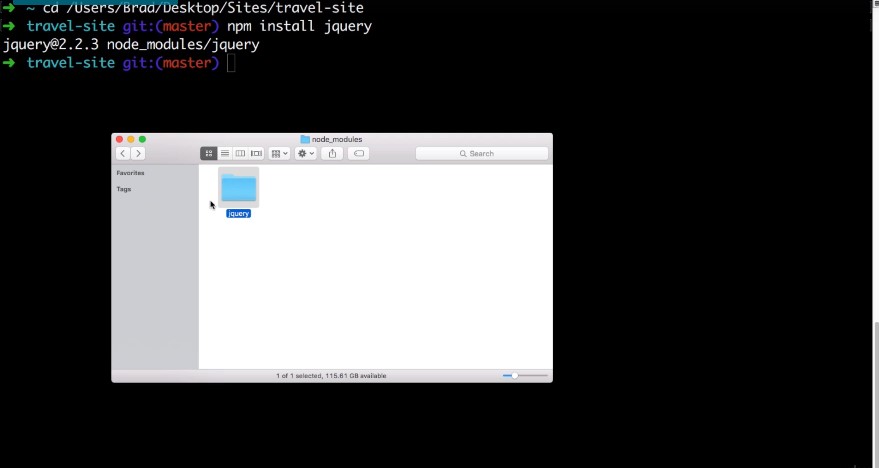
So if we go into that JQuery folder and then go into the dist folder here is the traditional JQuery minified javascript file that we would use on our Web page. It’s that simple to use NPM to download a package.
However there is one extra step we should perform to stay organized. So let’s go back and let’s undo what we just did and delete this node modules folder.
To start a new repository or project in the project folder:
git initthen press enter.then use npm init to create package.json. It will prompt you for values for fields. Type in:
npm initand press enter.then type in
npm install jqueryand press enter.you should be able to see the node modules folder with jquery in it, package.json, and don’t worry about this: package-lock.json.
And let’s try a more organized way of installing JQuery. Let’s begin a grocery list or a recipe ingredients list of all the packages we will need for our project. To do that Let’s go to the command line and type
NPM init
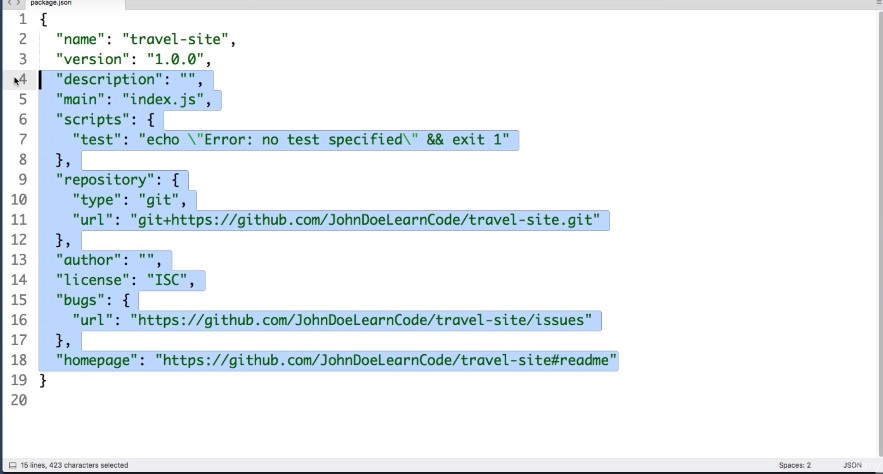
the command line will ask for a bit of info about our project that it will place at the top of our grocery list of packages. For now we can leave all of these blank or just accept the default answer and we can do that by just hitting enter or return on our keyboard. So just press enter several times until this process completes.
And once that’s done if we go to the travel site folder we will see this new file named package.json this file is our projects grocery list or recipe. This file keeps track of all of the packages that our project uses.
You will want to create one of these package on files for each one of your projects or for each one of your get repos go ahead and open it in your favorite text editor. Currently it only contains the info on our project that the computer generated automatically. We can actually delete all of these lines except for name and version. Let’s save those changes now.
The reason this file is so great is because we can use it to keep track of which packages we are using. So check this out.
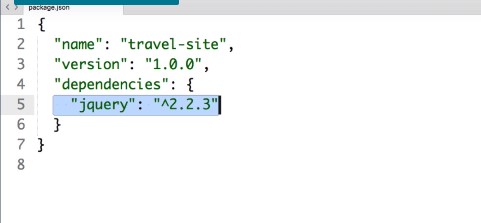
Back in the command line. Let’s download Jquery again. So NPM install Jquery but this time I want you to add a bit of extra text space dash dash save.
npm install jquery –save
Go ahead and hit enter. Just like before that will create a node modules folder and there’s Jquery. But more importantly back in our text editor we see that this new dependencies area was created automatically with JQuery included. Adding the –save to our install command saves the package to our recipe file (package.json).
Let’s try to install and save another package. So in the command line let’s try NPM install normalize.css.
This is a package that I know we will use in the course and be sure to include –save
npm install normalize.css –save
if we check our folder within the node modules folder. There is normalize and it is automatically added to our grocery list or to our recipe.
Let me show you why this is such a cool feature. So in our folder Let’s go ahead and delete the node modules folder so this will delete both jquery and normalize.css. Now because we have this recipe file that lists the packages we want. All we need to do to get both of them back is in the command line.
Just type npm install . That’s it. Hit enter.
And if we go to our folder and drill down into node modules there they both are. When we run NPM install node looks in the directory that our command line is currently pointed at. And it looks for a file named package.json and whether we have two or 200 packages listed here NPM will go and automatically download all of them for us in one file swoop. And that actually will bring hands on demo of getting started with NPM to a close.
Now let’s cover a few common questions that you might have at this point.
- Question number one: How am I supposed to know the exact name of packages that I should type into the command line. That’s a fair question.
So in this course I will let you know which packages we need. But out in the wild there won’t be someone whispering in your ear the name of packages. So what you can do is you can go to the NPM website npmjs.com and you can search and browse for packages or you can even just google for what you’re hoping to achieve with a package and then include NPM at the end of your search string that will usually take you to a particular package on the NPM Website and from there you can find out the name of the package.
- Question number two. OK so we have all of these package files in the node modules folder but how do we actually use these files. Should we manually move the files out of the node modules folder and into a folder that’s easier to access from our HTML pages?
The answer is No don’t do that. Leave the package files exactly where they are in the node modules folder. In future lessons we will learn about elegant ways of importing the package code into our own code.
- Question number 3 Why is it that if I run git status in my command line right now do none of these new package files in the node modules folder show up.
That’s a good question so let me run a git status with you right now. So in my command line.
git status
Let’s see what has changed recently. We see that the only file they get says has changed is the package.json file. But we know that we added all kinds of new files in this node modules folder we added JQuery which has all of these files we added normalize.CSS which has all of these files.
Why is git not tracking those files?
We can find the answer to this question by simply opening up our travel site folder itself in our favorite text editor. You can try to drag the travel site folder on top of your text editor icon or within your text editor you can go to file open and there should be some sort of open directory or open folder feature instead of just opening a file.
So once we’ve used the text editor to open the entire project folder we will see a hidden file named .gitignore within this file.
We can tell our repo to ignore certain kinds of files that are not important. So for example online 17 we see thumbs.db. This is a file that the Windows operating system will create in any folder that has images. So that’s a random operating system feature that has nothing to do with our code in the web site that we are building ds.store is a system file that Mac creates, so again we don’t need that in our repo. It has nothing to do with our project code, and lo and behold on line 12 we see node modules.
So this means we have configured our git repo to completely ignore the node_modules folder.
Why would we do that. When we do it because it’s a best practice and it’s a best practice because as long as we have the package done on file that lists which packages we need there’s no sense in bloating to get repo with all of those actual package files because even if our computer blew up and we lost all of our files, all we would need to do is get a new computer clone down our Repo from Github. And as long as we have this package .json file we just run in NPM install and we are back in business.
So that illustrates just how important the package.json file is it’s the recipe to our project.
Now because this file is so important. Before we close out this lesson I want you to take care of your business in git. I want you to add our package.json file to your repo. So I want you to add it to your staging area. Then I want you to create a commit and then I want you to push your Repo up to your github account. if you need to re watch the last lesson from the git Section to do all of that. That’s A-OK.
But make sure you do that before moving on to the next lesson. And in our next lesson we will learn about a super important package named gulp. Gulp is at the heart of all automation that we will be sending up in this course. It is going to save us a lot of time and I will see you in the next lesson.
Assignment:
git remote -v (check your Github repo)
git remote set-url origin https://github.com/xxx/travel-site1.git
save it
git commit -m “Add assignment package.json”
If there’s an error, possibly comes because of the different structure of the code that you’re committing and that present on GitHub. It creates conflicts which can be solved by
git pull
Merge conflicts resolving:
git push
If you confirm that your new code is all fine you can use:
git push -f origin master
Where -f stands for “force commit”.
More on explanation here.
Other useful commands:
git status
git init
npm install –force
npm audit fix
npm run dev –force (this is for react.js)
– delete node_modules
– delete package.json, package-lock.json
– copy package.json from https://github.com/facebook/create-react-app/
and paste to your working directory
run:
npm cache clear –force or npm cache verify
npm install –force (atau npm install biasa)
 DOM Frontend Javascript ES6+Node.JS+NPM+HTML5+CSS+Webpack+NPM