In this tutorial we’re going to set up everything we need to begin developing Java programs. If you already have the JDK and Eclipse installed you should skip this tutorial.
The first thing we need is the JDK or Java development kit. The JDK includes everything you need to create and run Java programs, the fastest way to find it is to just type something like Java JDK into Google and click first result.
From here you’ll want to click the download JDK button
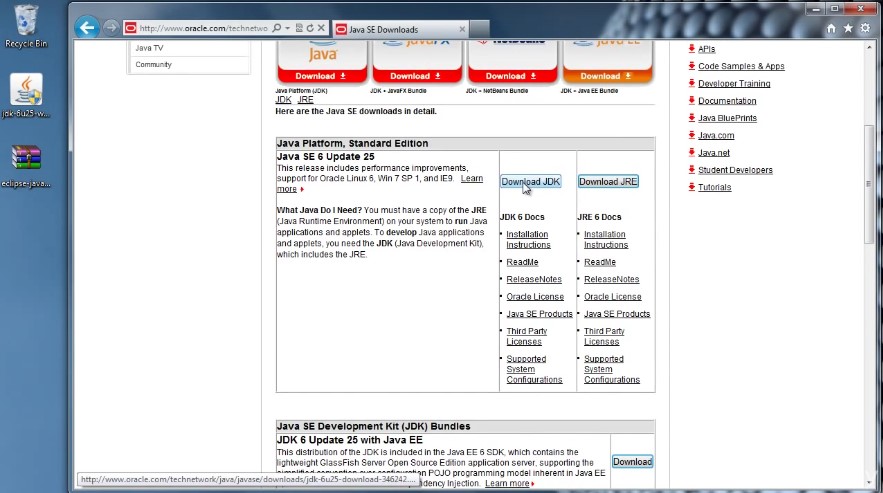
and on this page you’ll have to accept their license agreement and then download the appropriate one for your platform. Mine would be Windows 64 for 64 bit.
Once you have the JDK downloaded you should be able to install it and go through the wizard without any issues.
Next we’ll set up an IDE or integrated development environment.
Though You can technically program using a simple text editor and ID will help you immensely and as time goes on I’ll show you many of the cool ways it does that.
The ID will be using for all these tutorials is called Eclipse.
Eclipse is an open source freely available ID and you can use it for programming in many languages not just Java.
So to get it to go back to Google
And type in download eclipse click the first link and there’s a lot of options here.
But the only one we’re concerned with is Eclipse ID for Java developers.
So go ahead and download that for your platform.

Once you have Eclipse downloaded there really isn’t an installation for it. Just open it up Unzip the eclipse folder and you’re pretty much good to go.
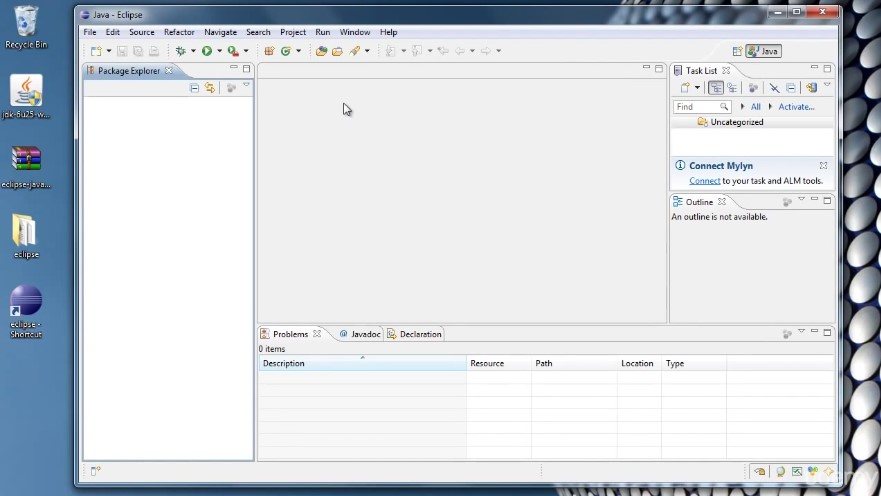
If you open up that folder and see the eclipse application right here what I usually do is right click it send to desktop to create a shortcut and you can go in started Eclipse up from that shortcut.
The first time you run Eclipse you’ll be prompted for a workspace.
All the workspaces is essentially where eclipse will store all your projects and files and whatnot.
You can change this at anytime later. So don’t worry about it too much.
Now after eclipse loads you’ll be taken to a welcome screen, from here you can get information like there is an overview of the features of Eclipse and see what’s new.
You can try some samples. You can go through tutorials but what we’re interested in is over here and the arrow text is a work bench.
You go ahead and click that this is where you’ll be spending most of your time doing Java coding.
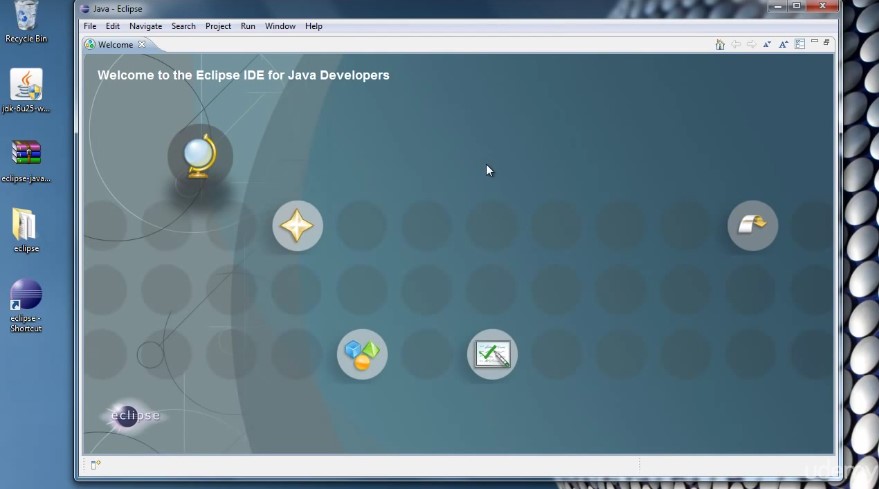
If you want to get back to the Welcome screen to access that information you can do that by going up to help and welcome.
Well now you have everything set up to begin coding and in the next tutorial we’ll do just that. Thanks for watching.
 DOM Frontend Javascript ES6+Node.JS+NPM+HTML5+CSS+Webpack+NPM