In this tutorial we’re going to create the basic hello world application using Java.
So if you have eclipse loaded up go to your workbench and
over here the package explorer,I’m going to right click select new ->java project I’m going to call the project MyFirstProject and just keep everything else the default settings and click Finish.
This will create our project in the package explorer and inside of it we’ll see it as a as our Src folder or a source folder.
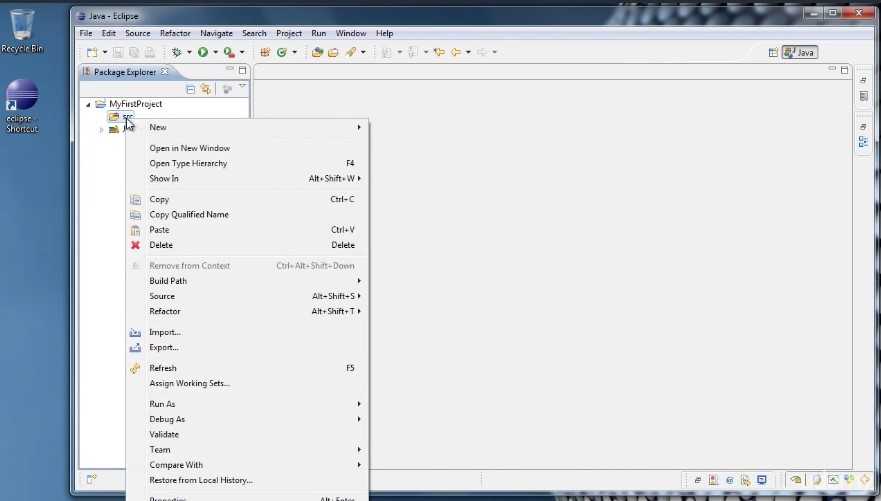
We’re going to right click that folder select new and class for the class name.
I’m going to type hello world and we can leave everything else as it is and click Finish.
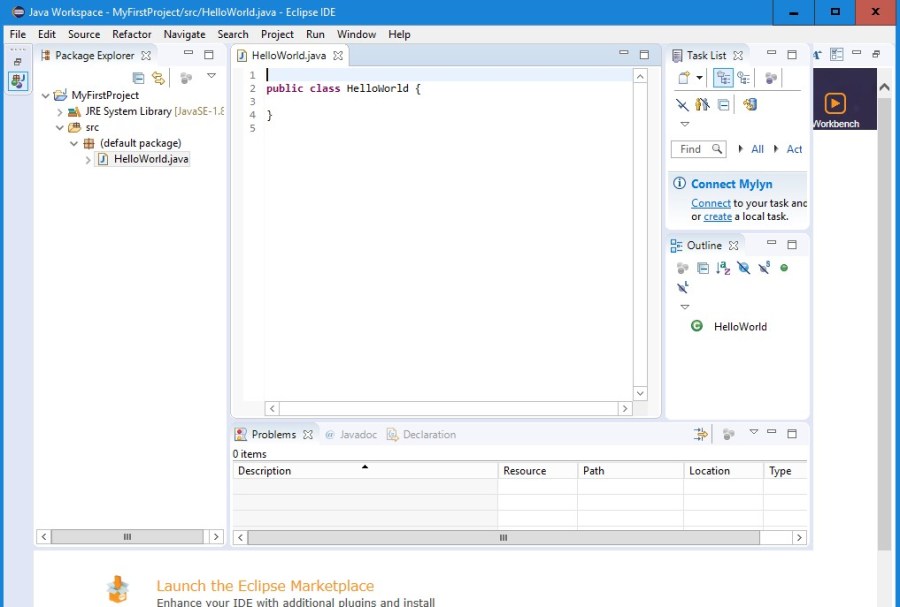
Now this gives us a Hello World dot java file that contains public class.
Hello world.
Now everything inside of these two curly braces are essentially the contents of the hello world class.
Now we want to create a program our program needs a point of entry. How does Java know where to start. And the answer is the main method. Now inside of these curly braces type the word main and then press control plus spacebar.
You’ll see this pop up window and it gives you the option to create a main method.
Go ahead and hit enter and you’ll see that the method is created for you.
For now don’t worry too much about the public static void string args.
All you have to remember is that the main method this thing is where our program begins.
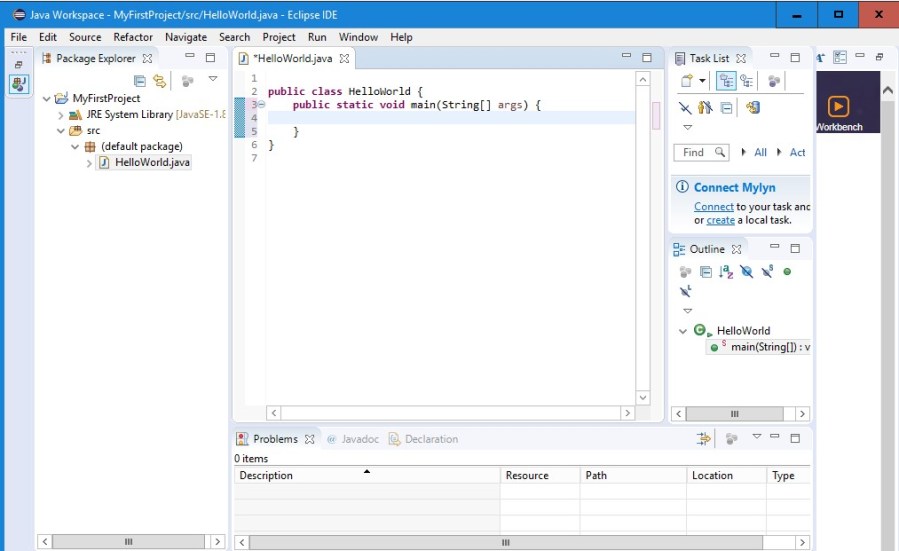
So when we run our program whatever is inside of the main method is what runs.
So next we want to somehow say hello world. So how do we do that.
Well there’s another handy eclipse shortcut and what you do for those is type s y s o.
And then again press control plus spacebar and that finishes it for us and it says system that out that print line.
What this will do is it will print whatever’s inside of these parentheses to the console.
When we run our application but in order to do that we need quotation marks to indicate that we’re giving
it some text we want to print out so type quotes and then say hello world.
There you have finished your first Java application and it wasn’t that hard.
If we want to run it up to this Green Arrow here it says run HelloWorld.java.
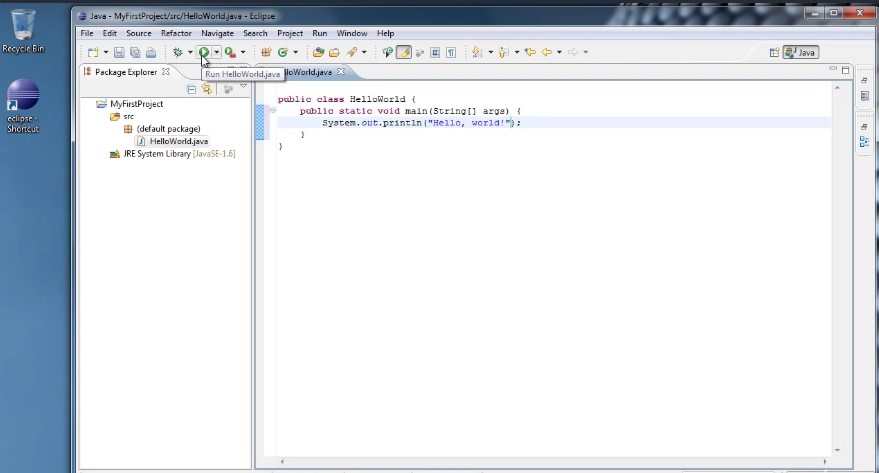
You’ll see this pop up window Save and launch. What I usually do is just go ahead and check. Always save resources before launching and click OK.
Now your program ran and hello world was printed out to the console.
Now we’re going to introduce comments. Comments are a way of basically putting notes inside of your code to remind yourself of maybe how you did things or what you still need to do or whatever you want really, and the way you write a comment
is you do ‘//’ and then anything you type on that line is commented out.
Now what that means is it is completely ignored by the compiler and it really only exists to help you so we could say //. This is a comments
now we want to remind ourselves that Main is where the program begins.
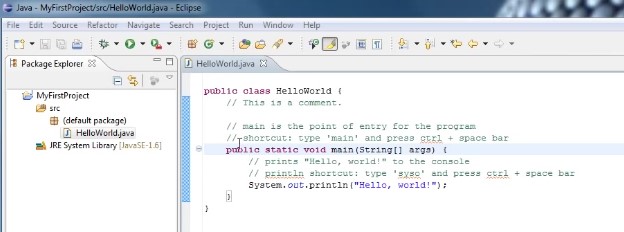
We could say something like four words flash forward slash.main is the point of entry for the program and maybe you want to remind yourself of how we didthat shortcut as well so we could say shortcut type name and press control plus spacebar.
and we can do something similar down here for this system out. You could say Print Hello World to the console and we could say forward slash forward slash print lines shortcut type s y s o and press control plus Spacebar
 .
.
Now we have a complete program that is commented hopefully well enough so that you can read through it and remember what you did and figure out what each part of it does.
That concludes this tutorial.
In the next tutorial. I will introduce some of the basic data types and Java and show how to use variables to store them. Thanks for watching.
 DOM Frontend Javascript ES6+Node.JS+NPM+HTML5+CSS+Webpack+NPM