In this tutorial we’re going to learn how to use objects. And I thought a fun way to do that would be by creating a window. Since we’ve had our code do so far are print stuff to the console, so to get started. let’s close our loops.java file.
Right click the default package select new class and we’ll call this objects and click Finish and let’s create main method by typing the word main pressing control spacebar and hitting enter.
So what is an object? You could think of it as a sort of component that you can use in your programs. In our case we’re going to use an object that will create a window for us and then we can do whatever we want with that window.
The idea is that we don’t need to be concerned with all the code that goes behind creating the window itself. All we need to learn is how to use the object that sets it up for us.
So creating an object is going to look much like how we’ve created variables in the past. For example if we were going to make an integer variable we might type int number= 5.
Well we’re going to do the same sort of thing with an object. We’re going to create a variable to contain or object and we’re going to assign it some value. So in the case of number, numbers type is int.
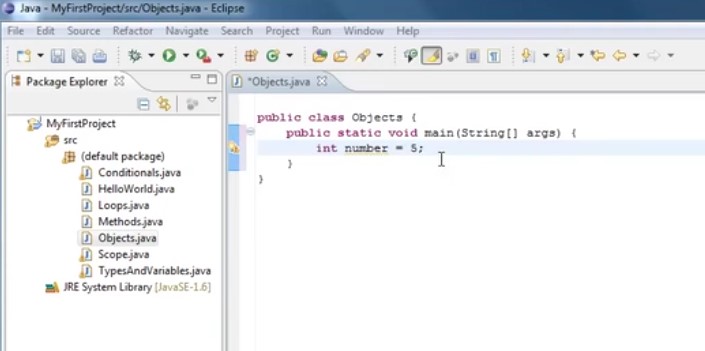
So what will be the type of our object that will create a window?
Well it’s a type that Java has available for us to use and it’s called jFrameAnd so we type jf and then press control spacebar. You’ll see this pop up window of things we can choose and what we’re interested in is the Jframe. So if you DoubleClick that will autocomplete for you.
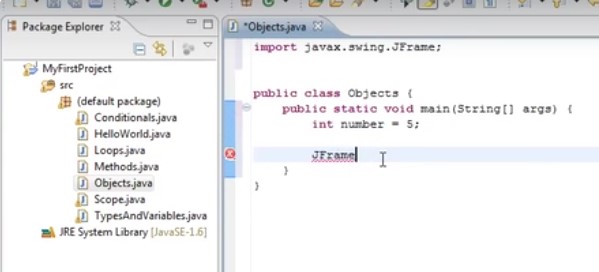
And now that is the type of variable.
So we can say the type is Jframe we’ll call the variable window. And now how do we initialize an object before with all the data We’ve worked with.
We’ve had numbers and text but this time we have this sort of complex idea of a window and how do we create a window. Well it’s actually quite simple.
All you have to do is type equals the keyword new and then followed by the type and then parentheses after the type.
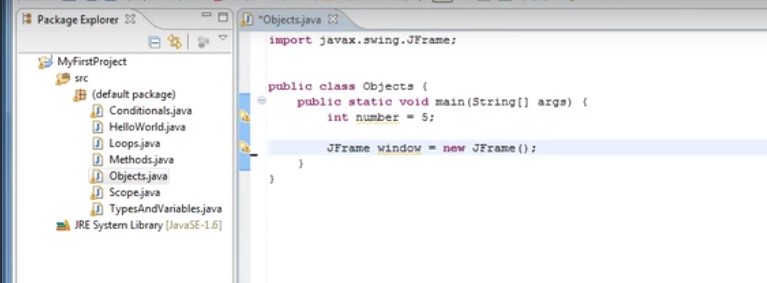
So we have jFrame window equals new frame followed by parentheses.
And now we have created an object and store that object in our window variable just like here we have the number five and we’re storing that in our number variable.
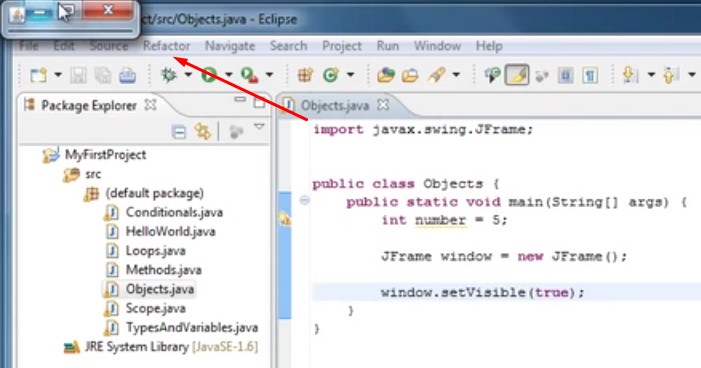
So now that we have this window created how do we use it? Well it turns out that just like how you would call methods that you write you can call methods on objects
and the way you would do that is to type something like our variable name window and then dot and now you’ll see this huge list pop up and it will tell you all of the different methods you can call on our window object.
And the one we’re interested in right now is setVisible and you type setvi you’ll pretty much get it. And you can auto complete it by hitting enter or double clicking it and now it expects some parameter. It tells us it’s a boolean and it gives us options so we can just go ahead and select true and place a semi-colon. So now we’ve created a window and we’ve said it’s visible property to True. And now we were to run it. We’ll see up here that a window actually popped up so we can close that.
And let’s look at what other methods we can call in a window. Let’s go before we make it visible in window, and type window.setsize and now there is two different choices for setsize.
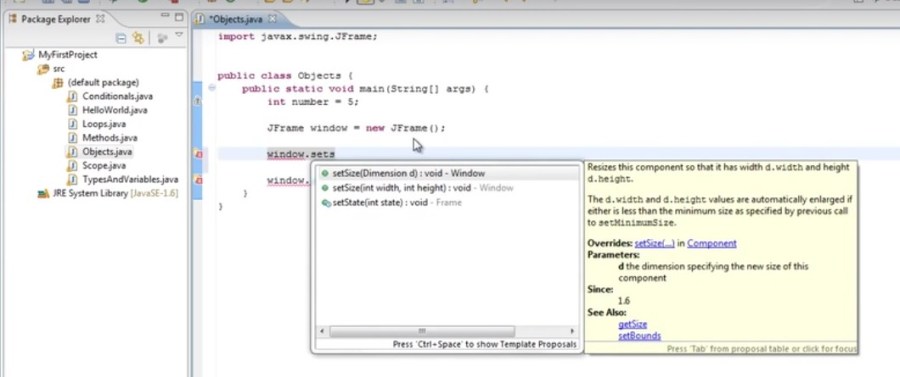
One expects a dimension d and the other one expects and int width and int height. Now it sounds simpler. So we choose that.
And now how wide do we want our window to be. We could put it 800 and for height you could put 600 but a semi-colon after it. And let’s run it again.
And now you can see we have this much larger window.

So what else can we do. Well let’s try a window.setTitle expects a string so we’ll put in quotes and we’ll call it my window.
And once again put a semicolon afterwards and let’s run it again.
And now you can see the window pops up and it now there’s a title of my window.
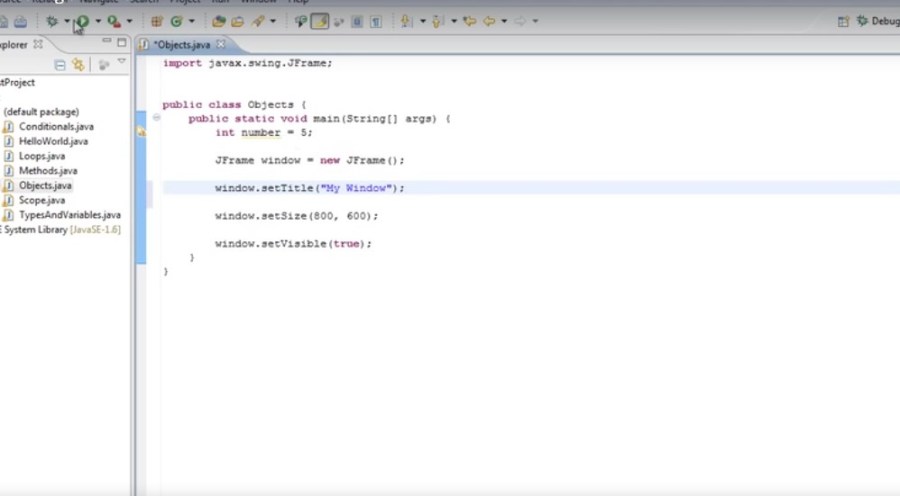
Now this is sort of the basis for object oriented programming where you create some object and you can call methods and set properties on that object to make it behave in a particular way and you can use all kinds of different objects and put them together in different ways to ultimately create the application you’re trying to make. So let’s keep all of our code together here.
We’re going to take these lines out and put a comment up at the top and say create our window.
And now after a window is created let’s say we want to add something to it to do that.
We’re going to create another object of a different type called jLabel.
So we type jLabel or part of it and press control spacebar you’ll see that it imports the label so we can use it and we’ll call it label and we’ll set it equal to a new label parentheses semicolon. And now we could call methods on that label object it by typing label.setText(“”) And for example we could set the text of our label and we can pass in some string. And for example we could say my label and put a semicolon after it.
And now how do we add that label to our window? Well it’s actually very simple.
All we have to do is say window.add(label), so we’re adding our label object to our window.
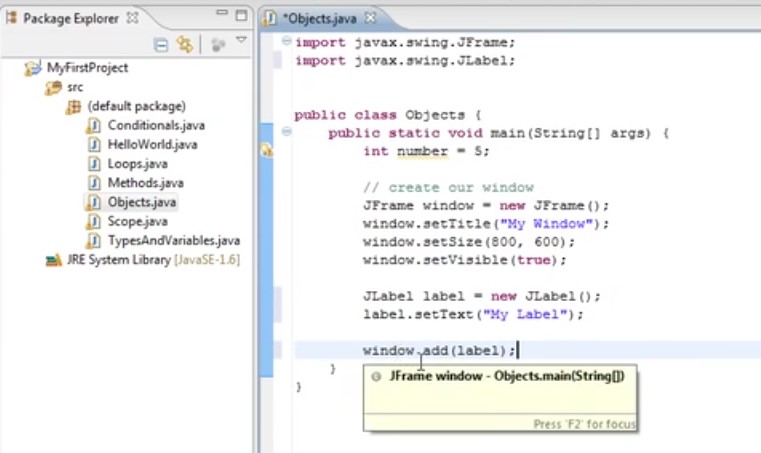
And now we run that:
will see that our window comes up and my label is attached to it.
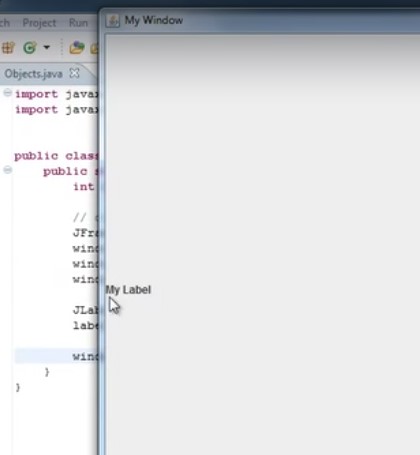
Now in later tutorials We’ll look into how to set up a user interface in a window like this using labels and text boxes, buttons dropdown menus and all sorts of components.
We’ll also look into how we can draw on our window which could lead into making some simple games.
But in this tutorial I’m just using a jFrame window as an introduction to using objects.
What I want you to be familiar with is that objects have types like our jFrame and jLabel.
They can be stored in variables like our window and label. You have to initialize or what’s called instantiate objects by using the new keyword followed by the type of object and parentheses. And once you have an object created you can call methods on that object to set its properties and control how it works.
Now let’s put some comments in just to make sure we understand what’s happening.
So on this line we are creating a
// window variable that holds jFrame objects and we’re creating a new jFrame to assign to our variable
on these next few lines:
// We’re calling methods on our frame object to configure it
and we’re doing the same thing here with
//label variable holds the label objects And we’re creating a new label to assign to our variable.
and the same thing on this line
// we’re calling the set text method on our jLabel object to said its text property.
And on this line
//we’re calling the add method of our keyframe object to add our label to the window.
Now I certainly wouldn’t expect you to memorize jframes, jlabels and the methods you can call on them.
My experience has been that I don’t even know many objects exist until I have a specific need that I end up doing a search on then I might find some examples to use as a starting point and figure things out from there.
And keep in mind that once you’ve created an object you can type the variable name and a dot and youcan see this list of everything you can do with that object.
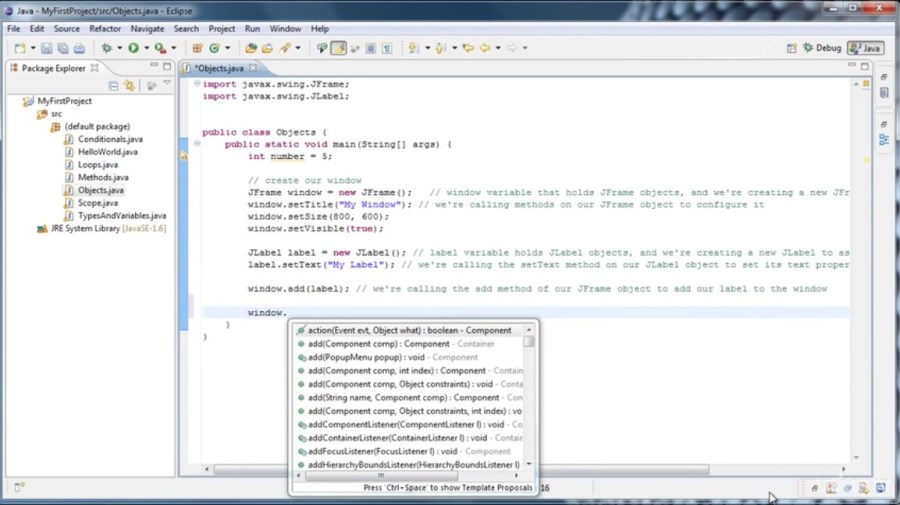
A lot of learning how to program is just experimentation and it’s really simple to learn about various objects and what you can do with them by using this codices feature.
And as one last example let’s create a string variable: String S =”Hi”;
What we actually created there was a string object. This is just a convenient way that Java allows us to create a string object and just like other objects if we were to type as start well see all the things we can do with our string object.
Now we’ll delve deeper into just what an object is and how to create our own objects in future tutorials when we cover more about object orientation and object oriented programming and design.But now you should know how to create an object and how to use them.
Thanks for watching.
 DOM Frontend Javascript ES6+Node.JS+NPM+HTML5+CSS+Webpack+NPM